
v3.15.0: Git Integration in Turbo PRO 🔄
Publication Date: 19/01/2026
Author: Anas Chakroun

6-7 minutes
Git integration is now live in Turbo PRO, solving one of the most common challenges developers face: tracing logs that were added in your current changes.
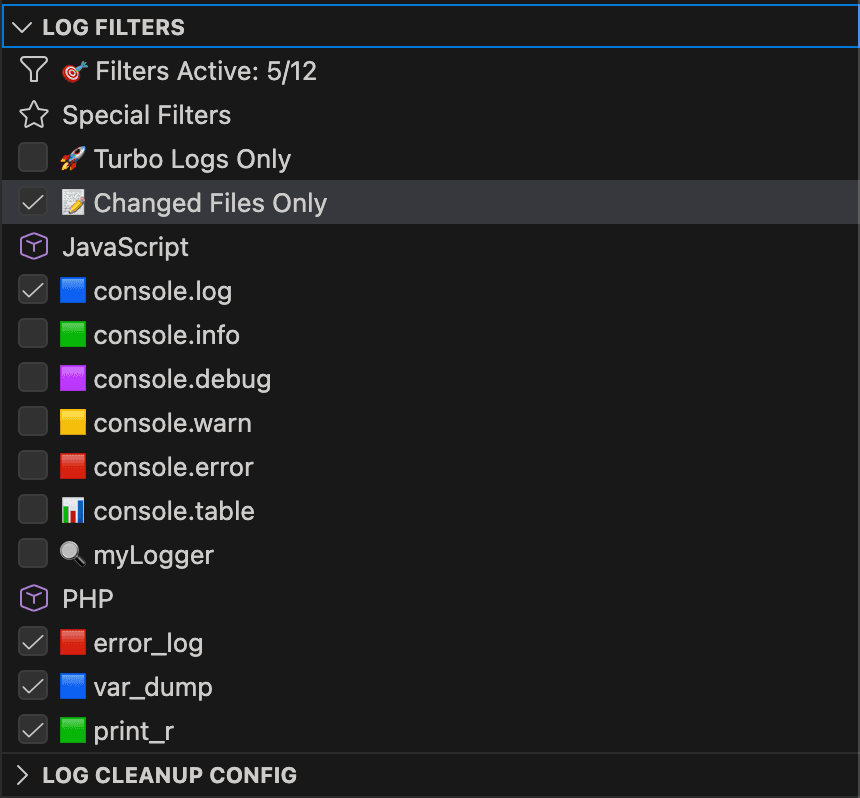
With the new 'Changed Files Only' filter, you can instantly see logs from files that have been staged, modified, or are untracked, giving you complete visibility into your current work and making cleanup before commits effortless.

The Problem: Lost in Your Own Logs
You know this scenario all too well:
- You add debugging logs while working on a feature
- You fix bugs, add more logs, test different approaches
- Hours later, you're ready to commit...
- But which logs did YOU add? Which ones are from old debugging sessions? Which ones should be removed before pushing?
Scrolling through hundreds of log statements across dozens of files, trying to remember which ones you added today, is frustrating and time-consuming. Even worse, you might accidentally commit debugging logs that should have been removed, or delete logs that were intentionally left for production monitoring.
The Solution: Changed Files Only Filter
Turbo PRO's new Git integration brings a simple but powerful solution: the 'Changed Files Only' filter. When enabled, the Turbo PRO panel shows ONLY logs from files that have been:
- Staged: Files you've explicitly added to the index with
git add - Modified: Files with uncommitted changes in your working tree
- Untracked: New files not yet added to version control
This means every log you see in the panel is directly related to your current work. No noise. No confusion. Just the logs from the files you've touched.
Clean Workflow: From Debugging to Commit
The real power of this feature emerges when you combine it with Turbo PRO's cleanup commands. Here's the workflow:
- Debug Your Feature: Add logs freely as you work. Don't worry about cleanup yet — focus on solving the problem.
- Enable 'Changed Files Only': When you're ready to commit, check the filter box in the Turbo PRO Filters panel. The panel instantly shows ONLY logs from your changed files.
- Review Your Logs: Scan through the focused list. You can see exactly which debugging logs you added during this session.
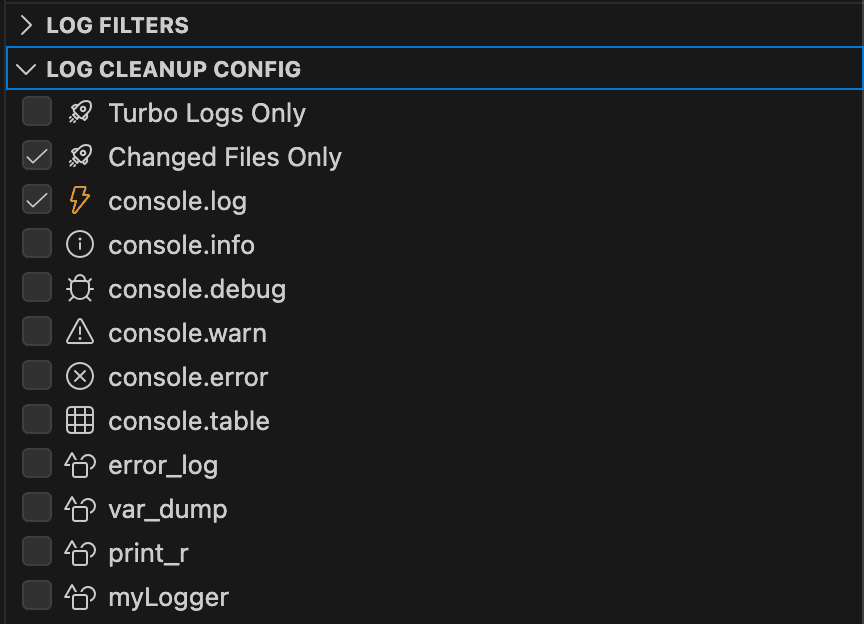
- Cleanup with One Click: Right-click the panel header and select "Delete All Logs From Config". Turbo PRO removes ALL logs from your changed files that match your active filters.
- Commit Cleanly: Your changes are now production-ready, free of temporary debugging code.
How It Works: Real-Time Git Awareness
Turbo PRO automatically monitors your Git repository status in real-time. When you:
- Save a file (triggers automatic refresh)
- Run
git add,git reset, or create new files - Switch branches or pull changes
The panel updates immediately to reflect which files are part of your current changes. This happens automatically in the background — no configuration needed.
The integration is built on VS Code's official Git API, ensuring compatibility with all Git workflows, including Git submodules, worktrees, and multiple repositories in the same workspace.
What's Next
This Git integration is the foundation for more powerful version control features planned for future releases. We're exploring deeper integration with Git workflows, including:
- Branch-specific log tracking and comparison
- Commit history integration for log archaeology
- Smart suggestions based on your commit patterns
- Pre-commit hooks integration for automated cleanup
For now, enjoy the cleaner workflow and the confidence that comes from knowing exactly which logs are part of your current changes.